Your equalizer download is on the way
Equalizer is on its way from the official Windows release door. The next hour covers finishing winget or the setup exe, launching FxSound, confirming the playback device, testing a preset, nudging one equalizer band, checking the install folder, skipping random mirrors, and updating through the same door you used to install.
By Equalizer editorial team Current release FxSound 1.2.12.0, published August 9, 2026
Download FxSound 1.2.12.0
Pick your system and the download starts.
winget install -e --id FxSound.FxSoundOr take fxsound_setup.exe from fxsound.com or the current GitHub release. ARM64: fxsound_setup.arm64.exe.
Two asks while the installer lands
If the project helped you, star fxsound2/fxsound-app on GitHub so other Windows users can find the real repository next to lookalike names that wrap the same search phrase.
Follow new builds via the releases feed, which lists current tags and asset names so you can see when fxsound_setup.exe moves without refreshing the Releases page by hand every week.
The first hour with FxSound
Work the eight steps in order so you do not redo settings later: finish the install before you chase extras, confirm the main window opens before you blame the download, and hear one trusted track before you push extreme boosts that clip laptop speakers.
Updates should use the same winget id or official setup exe you already trust, and longer install context lives on install on Windows, winget, and for this computer.
- Finish the Windows install.
If you used winget, wait until
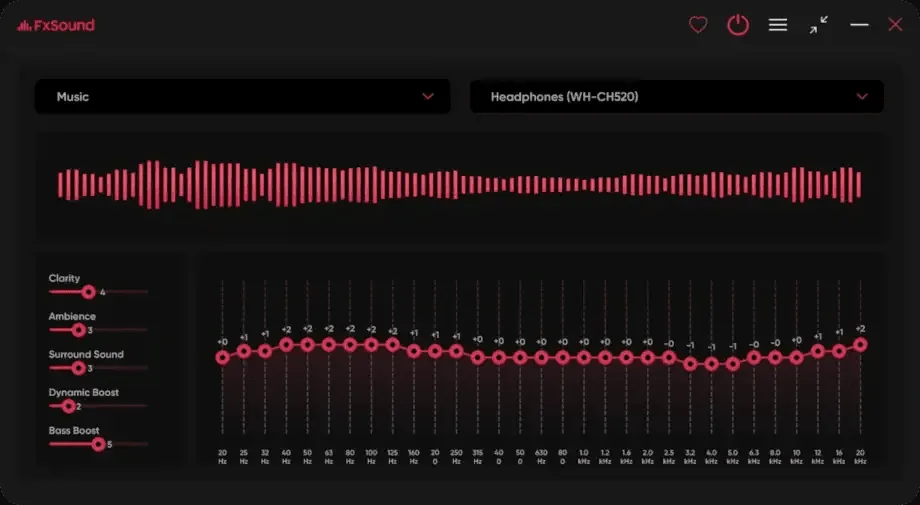
winget install -e --id FxSound.FxSoundexits cleanly. Winget pulls the current Windows setup family from microsoft/winget-pkgs. If you tookfxsound_setup.exeby hand from fxsound.com or GitHub, run it and complete the wizard, including the audio driver. Do not run a renamed setup from a search ad while you wait. - Launch FxSound once. Start FxSound from Start or from the install folder. Pass SmartScreen only when the file came from fxsound.com, GitHub, or winget. Confirm equalizer bands appear on the main window. First run: first run.
- Confirm the playback device. Open Windows sound settings and confirm playback can use the FxSound device when you want processing. If you hear no change, fix the device before you download anything else. System-wide notes: system-wide.
- Test a gentle preset. Pick a mild preset and play a short track you know. Listen for bass and treble changes without clipping. Preset guide: presets.
- Nudge one equalizer band. Move a single band, then return toward flat so you learn how sensitive your speakers are. Avoid stacking every boost at once during the first hour.
- Note the install location. Keep personal media outside the Program Files FxSound folder so updates stay simple. Portable notes: portable or exe.
- Skip random mirrors. If something fails, re-fetch from fxsound.com, GitHub Releases, or winget. Softonic-style wrappers and blog "accelerators" are the wrong door. Safety: is it safe. Download-safe: download safe.
- Plan the update door. If winget installed the package, upgrade with winget using id FxSound.FxSound. If you used the exe, take the newer fxsound_setup.exe from the same official door. Do not mix three mirrors. Uninstall uses Apps and Features or winget remove for the same id. Update notes: update and uninstall.
What success looks like
You are done with the first hour when FxSound opens cleanly, a preset changes what you hear on a known track, one band responds when you nudge it, and you know whether winget or the setup exe is your lasting update door for this PC.
If you arrived from Equalizer APO, read the migration notes after the test track works, because architecture differs and invented price tables do not help anyone choose a path. Migration: move off APO, vs Equalizer APO, guide vs APO.
Common first-hour mistakes
Stacking winget and a second exe into two folders wastes time when you later wonder which binary opened. Prefer one install location. Leaving Windows on a hardware-only playback device while blaming the equalizer is another common miss. Fix the device first.
Fetching a "full booster suite" helper from a search ad is the same class of mistake as fetching the editor from unofficial wrappers. The official setup exe is the complete desktop path. Releases list: releases. GitHub layout: GitHub.
Borrowing a locked-down lab PC can block winget, drivers, and unknown executables. Stop rather than forcing a helper installer. Use a machine you control when you need a clean path.
After the hour
Next useful reads cover presets, system-wide device routing, Windows setup depth, and the guides index, while official product pages at fxsound.com describe features in more depth than this install hour page.
Internal links stay on home, releases, GitHub, download safe, portable or exe, how to install winget, and Windows setup so the next machine gets the same trusted door.
- Finish the Windows install. Finish the Windows install. If you used winget, wait until winget install -e --id FxSound.FxSound exits cleanly. Winget pulls the current Windows setup family from microsoft/winget-pkgs. If you took fxsound_setup.exe by hand from fxsound.com or GitHub, run it and complete the wizard, including the audio driver. Do not run a renamed setup from a search ad while you wait.
- Launch FxSound once. Launch FxSound once. Start FxSound from Start or from the install folder. Pass SmartScreen only when the file came from fxsound.com, GitHub, or winget. Confirm equalizer bands appear on the main window. First run: first run .
- Confirm the playback device. Confirm the playback device. Open Windows sound settings and confirm playback can use the FxSound device when you want processing. If you hear no change, fix the device before you download anything else. System-wide notes: system-wide .
- Test a gentle preset. Test a gentle preset. Pick a mild preset and play a short track you know. Listen for bass and treble changes without clipping. Preset guide: presets .
- Nudge one equalizer band. Nudge one equalizer band. Move a single band, then return toward flat so you learn how sensitive your speakers are. Avoid stacking every boost at once during the first hour.
- Note the install location. Note the install location. Keep personal media outside the Program Files FxSound folder so updates stay simple. Portable notes: portable or exe .
- Skip random mirrors. Skip random mirrors. If something fails, re-fetch from fxsound.com, GitHub Releases, or winget. Softonic-style wrappers and blog "accelerators" are the wrong door. Safety: is it safe . Download-safe: download safe .
- Plan the update door. Plan the update door. If winget installed the package, upgrade with winget using id FxSound.FxSound. If you used the exe, take the newer fxsound_setup.exe from the same official door. Do not mix three mirrors. Uninstall uses Apps and Features or winget remove for the same id. Update notes: update and uninstall .
Longer install notes: Windows install.